Build Service Management
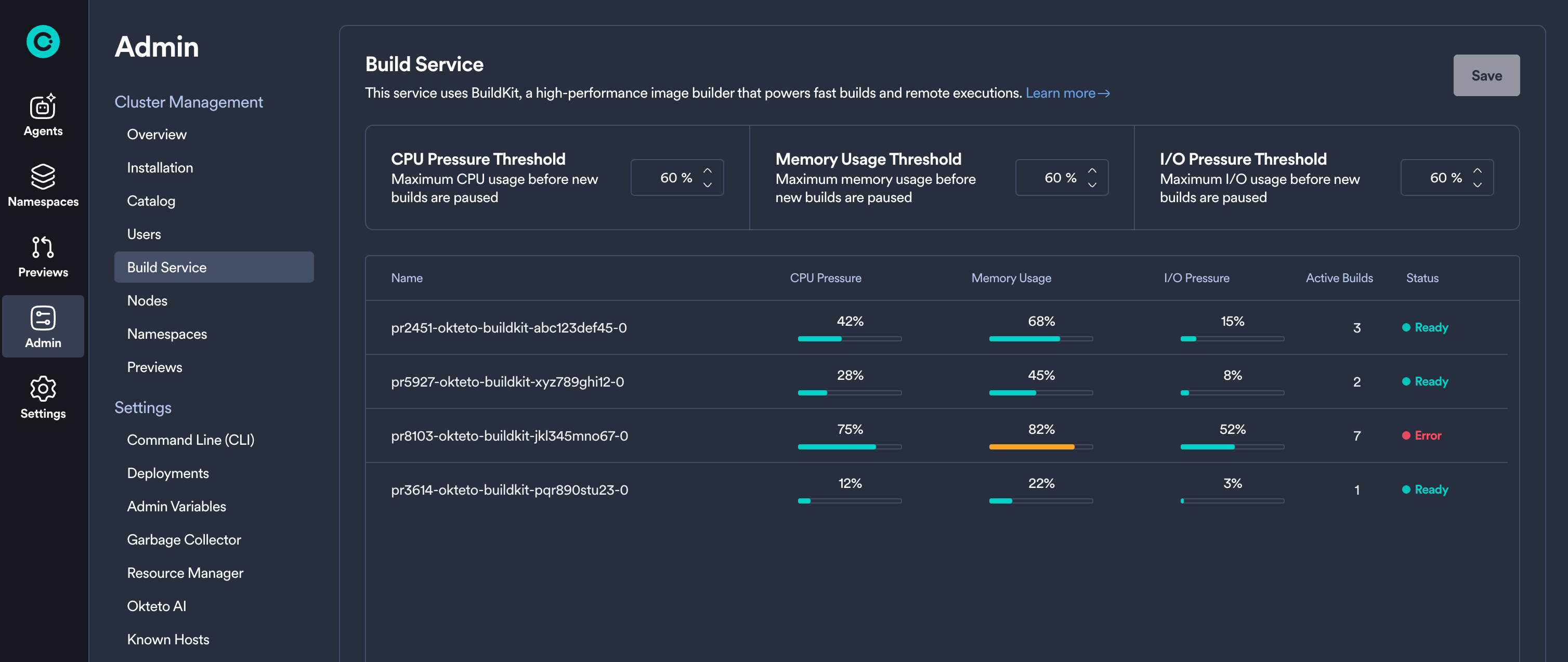
The Build Service admin view provides comprehensive monitoring for your BuildKit infrastructure. This interface allows administrators to track real-time performance metrics, configure resource thresholds, and ensure optimal build performance across your Okteto instance.
Overview
The Build Service uses BuildKit, a high-performance image builder, to power fast image builds and remote executions. The admin dashboard provides visibility into BuildKit pod health, resource utilization, and active build workloads.
For more information about optimizing BuildKit performance, see the BuildKit High Performance guide.
Accessing the Build Service Dashboard
Navigate to Admin → Build Service in the Okteto UI to access the Build Service management interface.
Metrics
The Build Service dashboard displays key metrics for each BuildKit pod:
- CPU Pressure: indicates how much any process is waiting for CPU in the last 10s. A value greater than 50% is a potential signal of build performance degradation.
- Memory Usage: a percentage out of 100%. A value close to 70% increases your chances to face Out-Of-Memory kill events.
- IO Pressure: indicates how much any process is waiting for IO in the last 10s. A value greater than 30% is a potential signal of build performance degradation.
- Active Builds: number of concurrent builds.
Configurable Thresholds
You can configure the following thresholds from the admin UI:
CPU Pressure Threshold
- Default: 50%
- Description: Maximum CPU pressure allowed before a BuildKit pod is marked as busy. CPU pressure is measured in 10-second intervals and indicates how much the pod is CPU-constrained.
- When to adjust: Increase if builds are being queued unnecessarily when CPU usage is acceptable. Decrease if you notice build performance degradation at current levels.
Memory Pressure Threshold
- Default: 70%
- Description: Maximum memory usage allowed before a BuildKit pod is marked as busy. Memory usage is reported as a percentage out of 100%.
- When to adjust: Increase if you have sufficient memory headroom and want to maximize pod utilization. Decrease if memory pressure is causing OOM issues.
IOPS Pressure Threshold
- Default: 30%
- Description: Maximum I/O pressure allowed before a BuildKit pod is marked as busy. I/O pressure is measured in 10-second intervals and indicates disk I/O contention.
- When to adjust: Increase if using high-performance SSDs with greater I/O capacity. Decrease if experiencing I/O-related build slowdowns.
Understanding Pod Status
Each BuildKit pod displays one of the following statuses:
- Ready: The pod is healthy and below all recommended thresholds.
- Busy: One or more metrics exceed the recommended thresholds.
- Starting: The pod is initializing and not yet ready to accept builds.
- Stopping: The pod is gracefully terminating, allowing active builds to complete.
- Error: The pod has encountered an error.
Disabling the Queue
The build queue can be disabled by setting the OKTETO_BUILD_QUEUE_ENABLED feature flag to false. When disabled, builds are sent immediately to an arbitrary BuildKit pod, regardless of resource utilization or configured thresholds.
Best Practices
Threshold Configuration
- Start with defaults: The default thresholds (50% CPU, 70% memory, 30% IOPS) work well for most workloads
- Monitor and adjust: Watch the metrics over time and adjust thresholds based on actual performance patterns
- Balance utilization and performance: Higher thresholds maximize resource utilization but may impact build performance
Related Documentation
- Build Service Overview - Learn about how the Okteto Build service works
- BuildKit High Performance - Detailed guide on optimizing BuildKit performance at high scale
- BuildKit Helm Configuration - Configure BuildKit settings in your Helm chart